


2025 Ford Explorer: Master the Digital Instrument Cluster
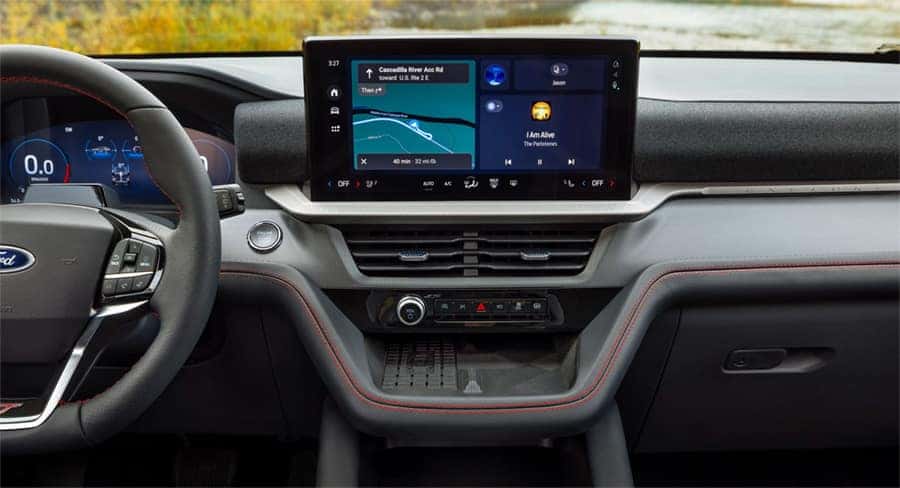
The 2025 Ford Explorer introduces a customizable digital instrument cluster that transforms how you interact with your Ford. This comprehensive system brings together new Ford technology, safety features, and customization options that make driving safer, more efficient, and more enjoyable. If you’re wondering how to use the new 2025 Ford Explorer digital instrument cluster, our team at Kalispell Ford will help you explore the feature in detail, including how to set up, configure, and navigate the cluster.
Key Improvements Over Previous Models
The 2025 Ford Explorer’s digital instrument cluster represents a significant upgrade for real-time vehicle data display. The new system features a 12.3-inch digital instrument display that works seamlessly with a 13.2-inch infotainment touch screen to provide clear, easy-to-read information. The system now integrates Google Maps, Google Assistant, and access to the Google Play Store, giving you familiar tools for user interaction and accessibility.
The integration of a 5G LTE Wi-Fi hot spot provides fast, reliable internet access, supporting real-time navigation updates and streaming capabilities. The system offers wireless Android Auto and Apple CarPlay compatibility, eliminating the need for cables. The 2025 Ford Explorer interior also includes a wireless charging pad and multiple USB ports for device charging so that your devices stay powered.
Getting Started With Your Digital Instrument Cluster
The digital instrument cluster in the 2025 Ford Explorer uses Ford Digital Experience, which integrates with SYNC 4 software, providing an intuitive interface that responds quickly to inputs. To begin using the system, press the Menu button located on the steering wheel to access the main menu on the instrument cluster display, showing information such as speed, fuel level, and navigation prompts.
The steering wheel controls allow easy navigation through different screens and menus. The right thumbwheel scrolls through options, while the OK button selects your choice. Voice commands provide hands-free control of many features, making it safer to adjust settings while driving.
Initial Setup
Setting up your digital instrument cluster begins with creating a driver profile. Access the settings menu through the touch screen or steering wheel controls. Select Driver Profiles and follow the prompts to create your profile. You can set preferences for display layout, units of measurement, and language. Utilize voice commands via Google Assistant or Amazon Alexa integrated into the system for hands-free control of navigation.
Understanding the Home Screen Layout
The digital instrument cluster display presents information in clear, organized sections:
- Navigation integration: Google Maps can be displayed directly on the cluster for turn-by-turn directions and real-time traffic updates.
- Vehicle status indicators: The cluster includes traditional gauges, such as the speedometer, tachometer, and fuel gauge.
- Temperature gauge: Monitors the engine coolant temperature, alerting you to potential overheating issues.
- Trip computer information: You can access trip data, including distance traveled, fuel efficiency, and more.
Navigating Through Various Display Options
The digital instrument cluster offers multiple display options to suit different driving situations.
Vehicle Information
The digital instrument cluster provides comprehensive vehicle information through the Ford SYNC 4 software. Access maintenance schedules, tire pressure readings, and engine diagnostics through the vehicle information menu. The system alerts you to potential issues and upcoming service needs.
Real-time engine data, including oil temperature and pressure, helps monitor vehicle health. The cluster displays maintenance reminders based on your driving patterns and vehicle conditions.
Fuel Economy and Trip Data
Monitor your fuel efficiency through detailed graphs and real-time consumption data. The trip computer tracks average speed, distance traveled, and fuel economy for current and past trips to optimize driving habits for better fuel efficiency. Access historical fuel economy data to track improvements and identify patterns in your driving efficiency. The system provides feedback on driving habits that affect fuel consumption.
Navigation and Compass Features
The integration of Google Maps in the 2025 Ford Explorer’s digital instrument cluster provides detailed navigation with real-time traffic updates. Turn-by-turn directions appear directly in your line of sight, with clear arrows and distance indicators. The compass feature remains available even when not using active navigation. Voice commands through Google Assistant allow destination input without taking your hands off the wheel. The system provides lane guidance and junction views for complex intersections.
Advanced Features of the Digital Instrument Cluster
The Ford Co-Pilot360 Assist Plus package integrates seamlessly with the digital instrument cluster, displaying safety alerts and driver-assistance information. The 2025 model includes enhanced features such as improved adaptive cruise control, advanced automatic emergency braking, enhanced pedestrian detection, an intersection assist feature, and driver-attention monitoring.
Customization Options: Themes, Colors, and Display Layouts
You can personalize your Ford Digital Experience through various customization options available in the instrument cluster. The My View feature allows you to select which gauges and information you want to display prominently. Adjust colors, themes, and information layout through the settings menu.
Safety Features and Alerts Display
In addition to Ford Co-Pilot360 features, the 2025 Ford Explorer’s digital instrument cluster integrates Ford BlueCruise, a hands-free driving system, which further elevates the vehicle’s safety profile by allowing hands-free operation on designated highways.
Troubleshooting Common Issues With the 2025 Ford Explorer Digital Instrument Cluster
There are common issues that you can troubleshoot with your digital instrument cluster.
Rebooting the System: Step-By-Step Guide
Here’s how you can reboot the digital instrument cluster.
Master Reset
To begin, turn on the ignition without starting the engine. Access the SYNC screen and navigate to Settings. Select General, scroll to Master Reset, and confirm. This will restore factory settings, so you’ll need to reconnect devices afterward.
Battery Disconnection Technique
Locate the vehicle’s battery and disconnect the negative cable. Wait for about 15 minutes before reconnecting it to reset the instrument cluster.
Calibration and Sensitivity Adjustments for Optimum Responsiveness
Here’s how to calibrate:
- Enter calibration mode by pressing and holding a specific button while turning on the ignition.
- Follow on-screen prompts to adjust gauges, such as the speedometer and fuel gauge.
- Confirm and save your settings.
Visit Kalispell Ford Today
If you’re not able to reset your instrument cluster, you can schedule a service appointment with our Ford dealership in Kalispell, Montana. We offer quick turnaround and support for your Ford. If you have questions or would like to know more about our services, feel free to contact us.
0 comment(s) so far on 2025 Ford Explorer: Master the Digital Instrument Cluster